If you run your poker nights on the GameNight tournament timer, the clock just got a lot more interesting. This release adds circular countdown clocks and a cleaner layout editor, both aimed at making the big screen at your table look exactly how you want it.
A countdown that goes in circles (on purpose)
The classic MM:SS clock isn't going anywhere. It's still the default. But when you're customizing your timer, the clock now has a Style setting with two new looks:
- Radial ring: a circular ring that drains as the blind level counts down, with the time in the center. At a glance from across the room you can see how much of the level is left without reading a single digit.
- Radial with checks: the same idea, but the ring is split into segments that "check off" one by one as the level elapses. Pick how many segments you want (12 is a nice default; bump it to 20 for a finer read).
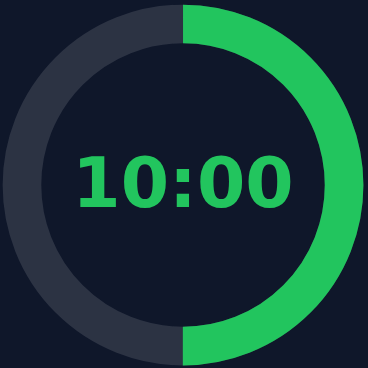
Radial ring at the halfway mark.
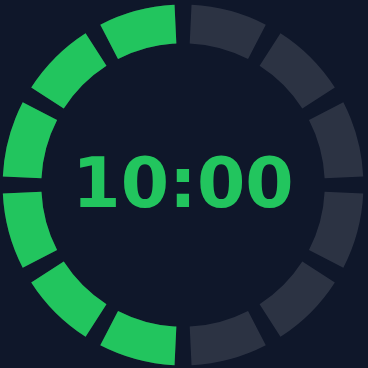
The "radial with checks" style, 12 segments.
Both styles keep the color cues you already rely on: the ring is green through most of the level, turns amber as the warning threshold approaches, and goes red (with a pulse) in the final seconds. You can dial in the ring thickness and which direction it sweeps, too.
The layout editor got out of its own way
When you customize a timer's layout, you can show or hide any element on screen: the clock, blinds, prize pool, player count, payouts, a QR code for remote viewing, a logo, even a live stream embed. Previously, the moment you entered edit mode every element popped onto the screen at low opacity, including the ones you'd deliberately turned off. It worked, but it was cluttered.
Now there's a tidy Objects panel down the side of the editor. It lists every element with a show/hide eye and lets you click any one to select it, including hidden ones. A hidden element only appears on the canvas while you've got it selected, so you can nudge it into place, then it tucks itself away again. Your screen stays clean while you work.
It all travels with your theme
Everything here (the clock style, ring settings, what's shown or hidden, and where each piece sits) is saved as part of your timer theme. That means you can set it up once and reuse it, and it rides along when you export a theme to a file or import one someone shared with you. Older saved themes are completely safe: anything that predates this update simply shows the classic text clock, exactly as before.
How to try it
- Open a tournament timer at gamenight.poker and tap the Theme button to enter edit mode.
- Click the clock (or pick it from the new Objects panel).
- In the inspector, change Style to Radial ring or Radial with checks.
- Tweak thickness, direction, and segments to taste, then Save your theme.
That's it. The same reliable countdown your table already trusts, now with a look you can make your own. Run your next tournament on it at gamenight.poker.
Sign in to leave a comment.